Connecting Klaviyo
Send quiz responses from your Clarflow funnel into Klaviyo as events, then use those responses as dynamic variables inside your email templates.
Prerequisites
- A Klaviyo account
- A Clarflow funnel with at least one email input sub-element
Step 1: Connect Klaviyo in Clarflow
Open Settings → Integrations, find the Klaviyo card, and click Connect. You'll be redirected to Klaviyo to authorize Clarflow via OAuth.
Step 2: Enable the toggle on your email input
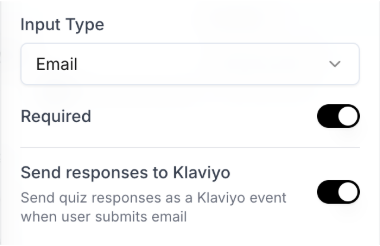
Open your funnel in the editor. Select the email input sub-element and turn on Send responses to Klaviyo.
Then save the funnel and make it public from the share popover.
Step 3: Start a new flow in Klaviyo
In Klaviyo, go to klaviyo.com/flows/create and click Build your own.
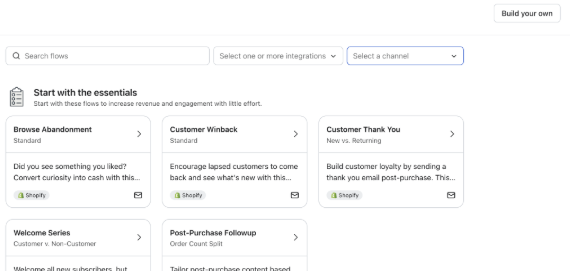
Step 4: Create the flow manually
Click on Create Manually.
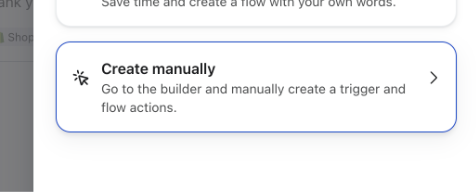
Step 5: Pick the Clarflow metric as the trigger
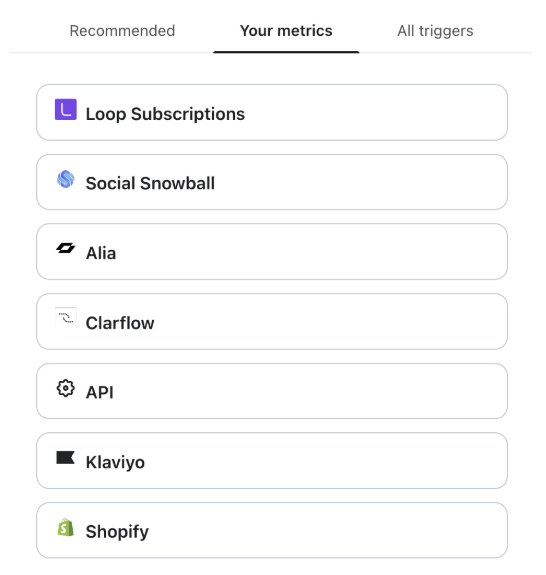
By default the trigger screen shows Recommended metrics. Switch to Your Metrics, pick Clarflow, and then select the metric named Quiz Response - <Your Funnel Title>.
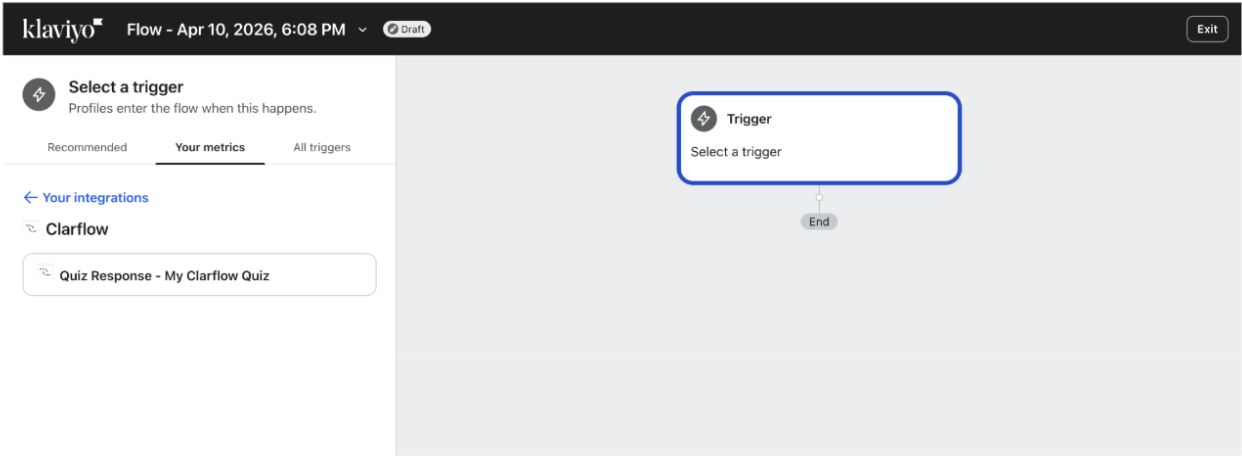
Set up the re-entry criteria to match how you want subscribers to re-enter this flow.
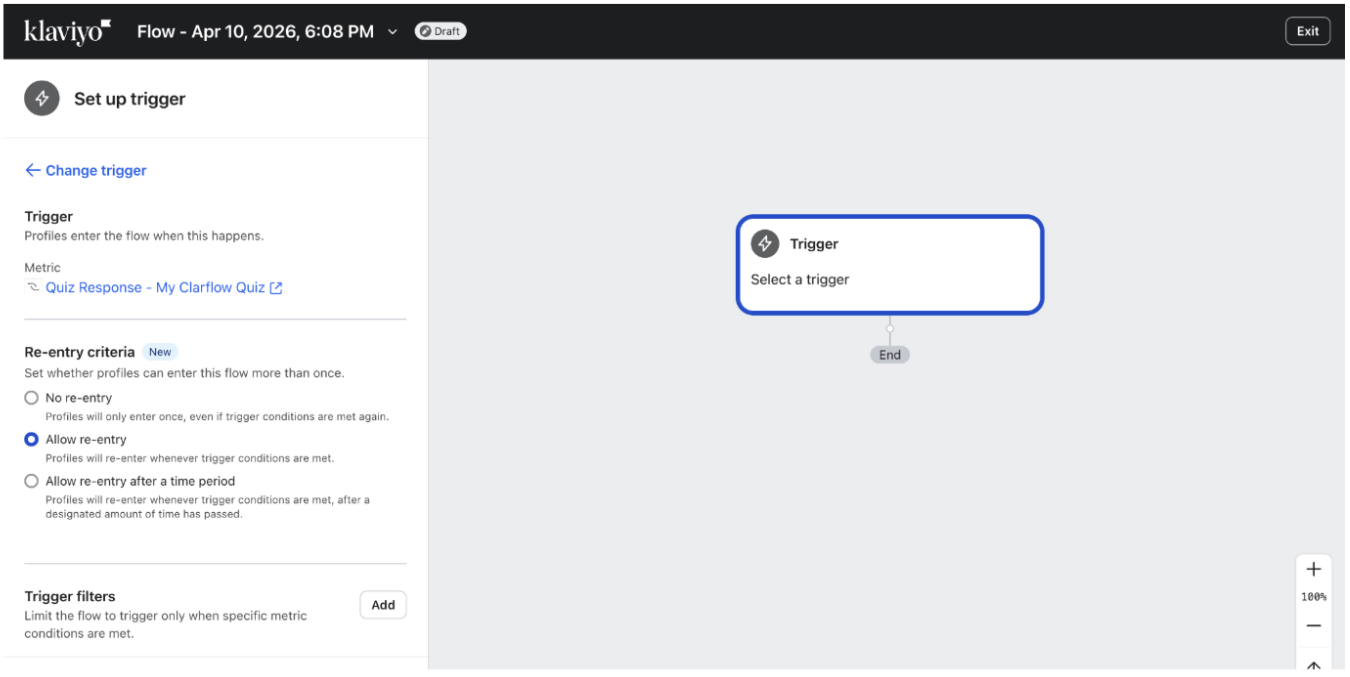
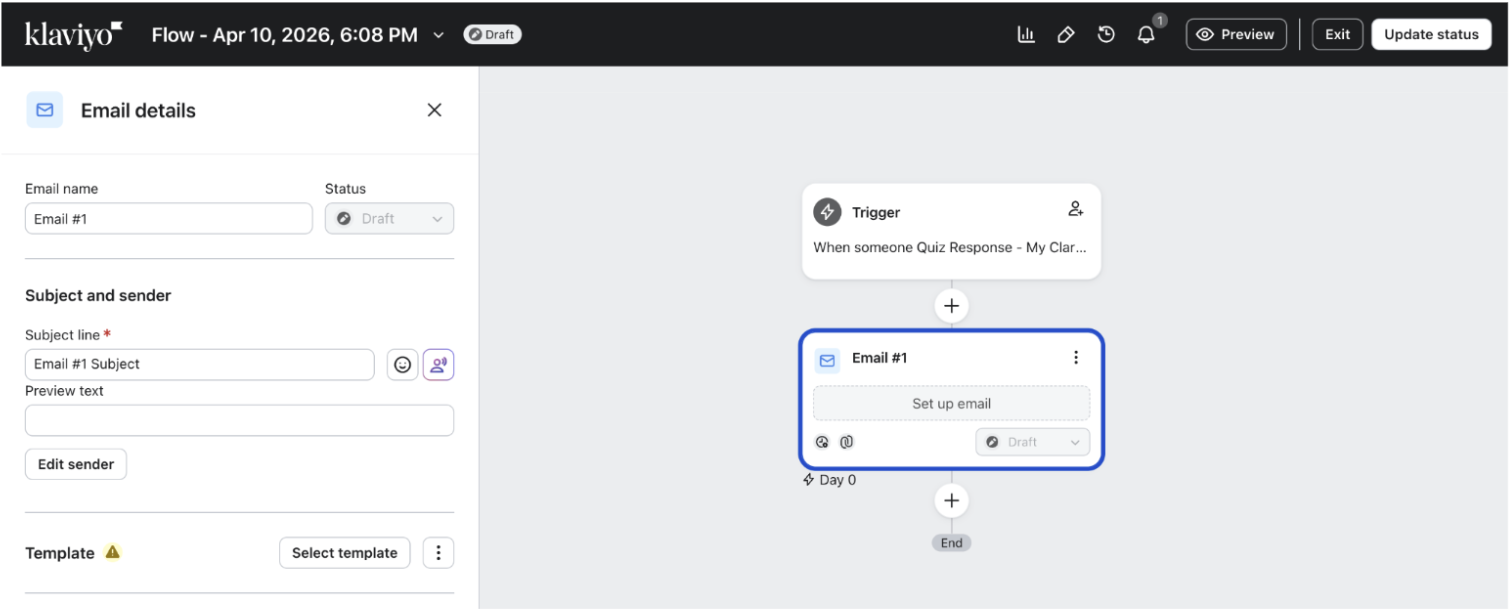
Step 6: Add an email action
Drop an Email action into the flow below the trigger.
Step 7: Use quiz answers as variables
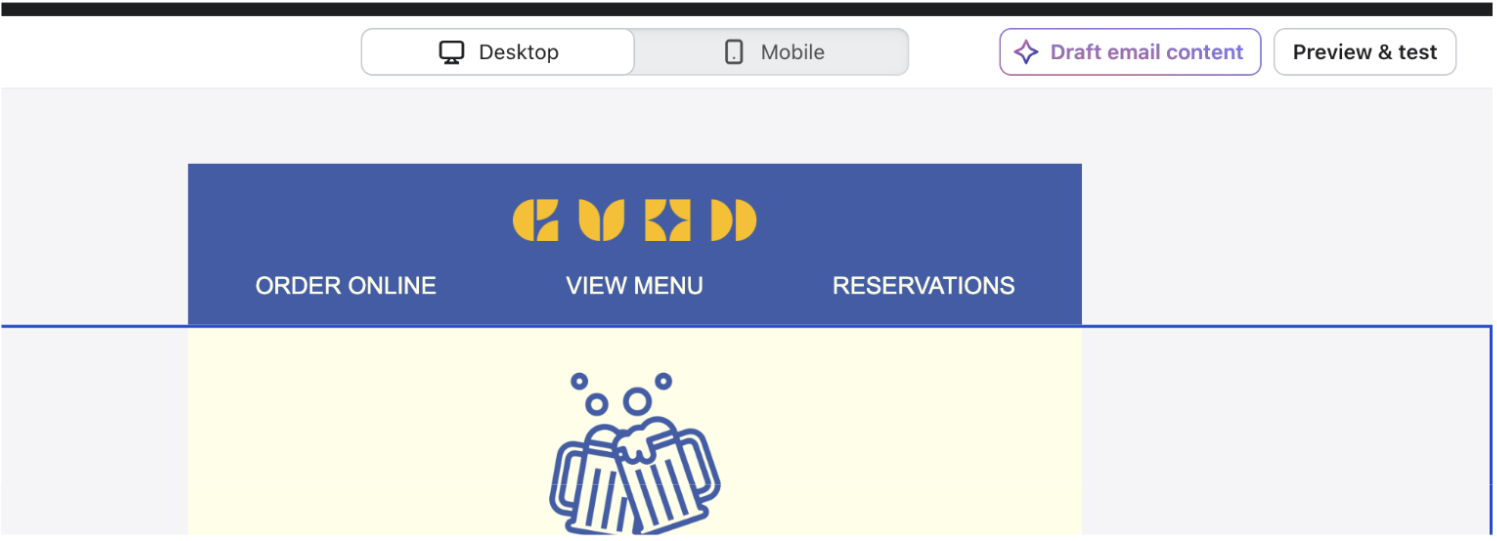
Inside the email, click Preview in the top right.
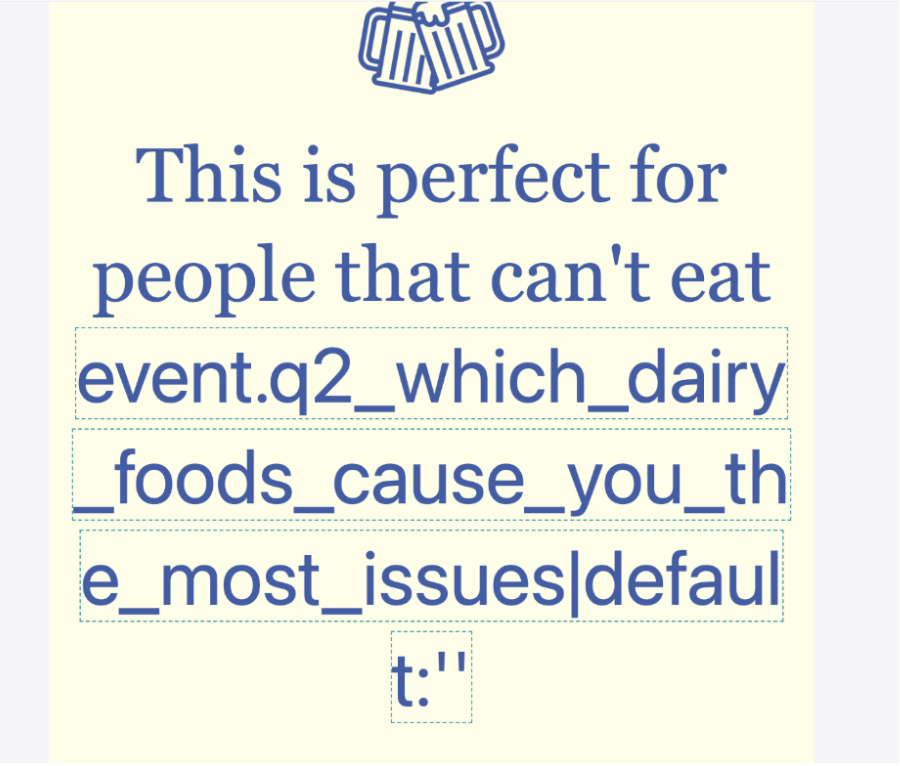
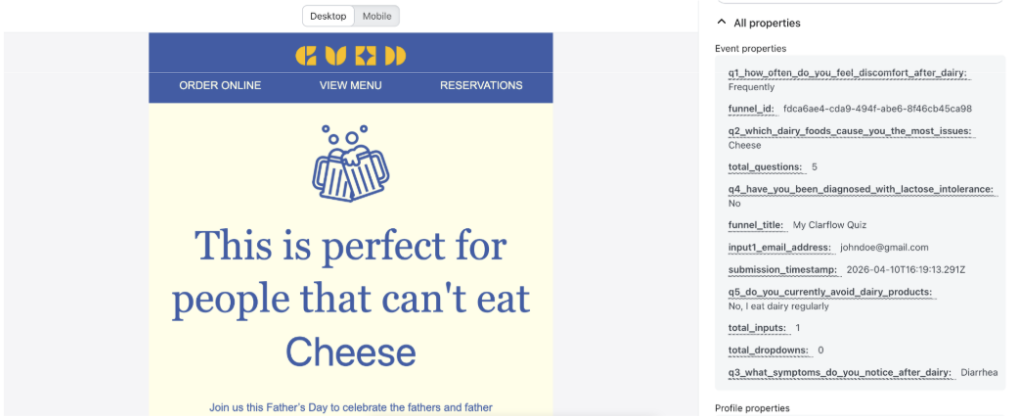
In preview mode the email renders on the left and all event properties appear on the right.
Click the property you want to use and copy it as a variable.
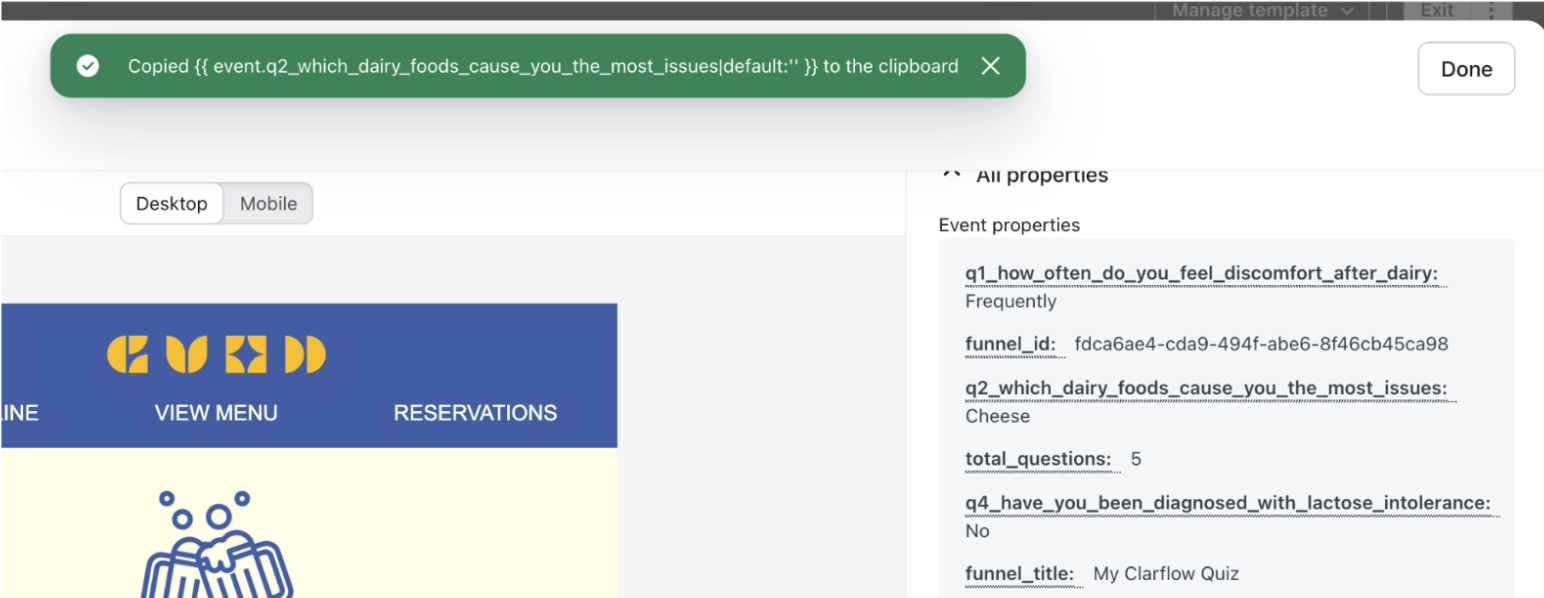
Paste the variable anywhere in your template. When you preview again, you'll see the actual quiz response rendered in place of the variable.